
Check Best Thermostat Pricing in Amazon
** As an Amazon Associate, I earn from qualifying purchases.
Are you struggling to figure out how to turn the fan off on your Honeywell thermostat? You’re not alone.
Sometimes the fan keeps running even when you don’t want it to, which can waste energy and increase your bills. But don’t worry—this guide will show you simple steps to take control of your thermostat’s fan settings quickly. Keep reading to learn exactly how to switch the fan off and make your heating and cooling system work just the way you want.

Credit: www.reddit.com
Locate The Fan Control
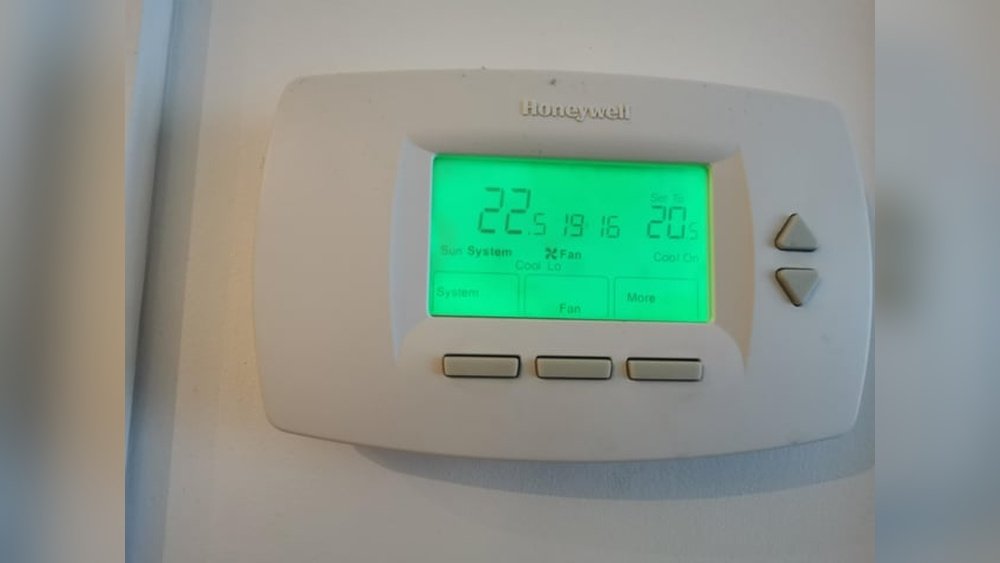
Locating the fan control on your Honeywell thermostat is the first step to turning the fan off. This control lets you manage the fan’s operation separately from heating or cooling. Knowing where to find it saves time and effort. It also helps you use your thermostat more efficiently and comfortably.
Check The Thermostat Model
Different Honeywell thermostat models have different layouts. Some have a touchscreen, while others use buttons or dials. Look at your thermostat’s front panel. Check the user manual or model number on the back. This information helps you understand your thermostat’s features. Knowing your model guides you to the right fan control settings.
Find The Fan Settings
The fan control is usually labeled clearly. Look for buttons or menus named “Fan,” “Fan Control,” or “Fan Mode.” On touchscreen models, tap the menu or settings icon. Scroll through the options to find fan settings. Common choices include “Auto,” “On,” and “Off.” Select “Off” to stop the fan from running continuously. This step is key to saving energy and noise.

Credit: www.youtube.com
Turn Off The Fan Manually
Turning off the fan manually on your Honeywell thermostat is a simple task. This option helps control airflow and saves energy. You can switch off the fan using either the touchscreen or physical buttons. Both methods work well and are easy to follow.
Using The Touchscreen Interface
Start by waking up the thermostat screen. Tap the screen gently to activate it. Look for the “Fan” option on the main menu. Tap “Fan” to open fan settings. Select “Off” to stop the fan from running. Confirm your choice if the screen asks. The fan will stop immediately after selection.
Using Physical Buttons
Find the physical buttons on your thermostat’s side or front. Press the “Menu” or “Settings” button to enter the menu. Use the arrow buttons to scroll to the “Fan” option. Press “Select” or “OK” to open fan settings. Scroll to “Off” and press “Select” again. The fan will turn off right away.
Adjust Fan Settings For Auto Mode
Adjusting the fan settings on your Honeywell thermostat to Auto mode helps save energy. The fan runs only when heating or cooling is active. This setting prevents the fan from running all the time, reducing noise and lowering electricity bills.
Follow simple steps to set the fan to Auto mode. This guide ensures you control your thermostat fan easily.
Set Fan To Auto
Start by pressing the fan button on your thermostat. A menu with fan options appears. Select “Auto” from the list. This tells the fan to work only during heating or cooling cycles. It stops the fan from running continuously.
Confirm Changes
After selecting Auto, check the display to confirm the change. Some models require pressing “OK” or “Save.” Make sure the fan icon shows “Auto” mode. This confirms your thermostat will run the fan correctly. Now, your fan will turn off automatically when not needed.
Troubleshoot Common Issues
Troubleshooting common issues helps keep your Honeywell thermostat working well. Problems with the fan can be annoying. Understanding simple fixes saves time and frustration.
This section covers common fan problems and how to solve them. Follow the steps carefully. You may not need a technician.
Fan Won’t Turn Off
Check the fan setting first. Make sure it is not set to “On.” Change it to “Auto” to control the fan automatically.
Look at the thermostat wires. Loose or damaged wires can cause the fan to run nonstop. Turn off power before checking wires.
Reset the thermostat by turning it off and on. This can clear small errors causing the fan issue.
Check Best Thermostat Pricing in Amazon
** As an Amazon Associate, I earn from qualifying purchases.
If the fan still won’t stop, the fan relay might be stuck. This part controls the fan power. A technician can replace it safely.
Thermostat Unresponsive
Thermostat that does not respond can stop you from turning the fan off. First, check the batteries. Replace them if they are low or dead.
Restart the thermostat by pressing the reset button or removing and reinserting the batteries.
Inspect the display screen. If it is blank, the thermostat may not get power. Check the circuit breaker or fuse.
Update the thermostat software if possible. Sometimes bugs cause unresponsiveness. Follow the user manual for updates.
If the thermostat remains unresponsive, contact Honeywell support for help or consider replacing the unit.
Save And Exit Settings
After adjusting the fan settings on your Honeywell thermostat, saving and exiting is the next step. This ensures your changes take effect and the thermostat runs as you want. Skipping this part may cause the fan to keep running or not respond to your commands.
Saving settings is simple. Usually, you press a button labeled “Done,” “Save,” or “Exit.” The screen may ask for confirmation. Confirm to lock in your changes. The thermostat then returns to the main display.
Final Check
Look at the thermostat screen after saving. Check if the fan setting shows as “Off.” Test the fan by toggling the mode. It should stop running if set to off. This confirms your changes worked.
Restart Thermostat If Needed
Sometimes, the thermostat may not update immediately. Restarting helps reset the system. Turn off the thermostat power for a few seconds. Turn it back on and check the fan setting again. This step fixes most issues with fan control.

Credit: www.youtube.com
Frequently Asked Questions
How Do I Turn Off The Fan On A Honeywell Thermostat?
To turn off the fan, press the “Fan” button until the display shows “Auto. ” This setting stops the fan from running continuously.
Can I Control Fan Settings Manually On Honeywell Thermostats?
Yes, Honeywell thermostats allow manual control. Use the “Fan” button to switch between “On,” “Auto,” or “Circulate” modes.
Why Won’t My Honeywell Thermostat Fan Turn Off?
Check if the system is set to “Fan On” mode. Also, inspect wiring or settings for errors or malfunctions.
What Is The Difference Between Fan “auto” And “on” Modes?
“Auto” runs the fan only during heating or cooling. “On” runs the fan continuously regardless of temperature.
Conclusion
Turning off the fan on your Honeywell thermostat is simple and quick. Just follow the steps clearly, and you will succeed. This helps save energy and keep your home comfortable. Knowing how to control your thermostat better makes daily life easier.
Try these tips next time you want to stop the fan. Small actions can lead to big savings. Stay comfortable without wasting power. You have the power to manage your home’s temperature with ease.
Check Best Thermostat Pricing in Amazon
** As an Amazon Associate, I earn from qualifying purchases.