
Check Best Thermostat Pricing in Amazon
** As an Amazon Associate, I earn from qualifying purchases.
Is your Nest Thermostat acting up and leaving you frustrated? You rely on it to keep your home comfortable, but when it stops working right, it can throw your whole day off.
Don’t worry—you don’t need to call a technician just yet. In this guide, you’ll discover simple, step-by-step fixes that anyone can do. Whether your Nest won’t turn on, won’t connect to Wi-Fi, or isn’t adjusting the temperature correctly, you’ll find clear solutions here.
Keep reading to get your thermostat back on track quickly and easily.

Credit: www.youtube.com
Common Nest Thermostat Issues
Nest Thermostats are popular for smart home comfort. Still, they can face some common issues. These problems affect daily use and need quick fixes. Understanding these issues helps you handle them with ease.
Power And Display Problems
Power issues often cause the thermostat to shut off. The display might go blank or freeze. Check if the device is properly connected to power. Sometimes, a low battery can cause the screen to dim. Resetting the device can solve many display problems.
Connectivity Challenges
Connectivity problems stop the thermostat from syncing with Wi-Fi. This blocks remote control through apps. Restart your router and thermostat to fix this. Make sure the Wi-Fi password is correct. Place the thermostat near the router for a better signal.
Temperature Sensor Errors
The thermostat may show wrong temperatures due to sensor faults. Dust or debris can block the sensor. Clean the area around the thermostat gently. Recalibrate the sensor if the readings are off. Replace the sensor if errors continue.
Software Glitches
Software bugs can cause the thermostat to act strange. It might restart randomly or freeze. Check for updates and install the latest software. Reset the device to clear minor bugs. Contact support if problems persist after updates.
Credit: www.androidcentral.com
Basic Troubleshooting Steps
Basic troubleshooting steps help solve common Nest thermostat problems. These steps are easy to follow and often fix the issue quickly. Start with simple actions before trying more advanced methods. This saves time and avoids extra costs.
Restarting The Thermostat
Restarting can clear temporary glitches. Press and hold the thermostat ring for about 10 seconds. The screen will turn off and on again. This refreshes the system and may fix the problem fast.
Checking The Wiring
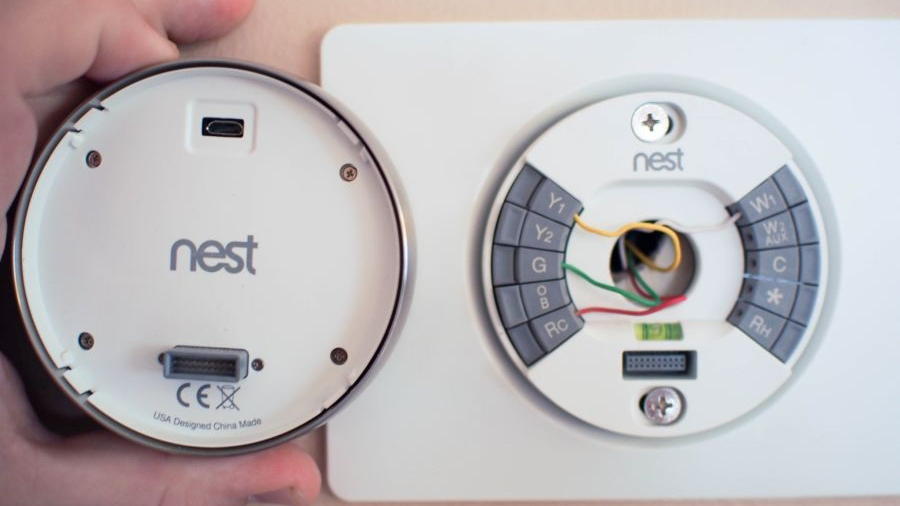
Loose or incorrect wiring can cause errors. Turn off power to the thermostat first. Remove the thermostat from the base. Check if all wires are connected tightly and in the right places. Fix any loose wires carefully. Turn power back on and test the device.
Resetting To Factory Settings
Resetting erases custom settings but solves deeper issues. Go to the thermostat menu and select Reset. Choose Factory Reset to restore original settings. This clears bugs and restores normal function. Set up the thermostat again after resetting.
Updating Firmware
Firmware updates fix bugs and improve performance. Connect the thermostat to Wi-Fi. Check the settings menu for update options. Download and install the latest firmware version. Keep the device powered during the update. Updates help keep your thermostat running smoothly.
Fixing Power And Display Issues
Power and display problems are common issues with Nest Thermostats. These problems often stop the device from working correctly. Fixing these issues helps the thermostat run smoothly and keeps your home comfortable.
Start by checking the power source. A weak or missing power supply often causes display and power failures. Next, look at the batteries. Dead or weak batteries can make the screen go blank or flicker. Lastly, inspect the C-wire connection. This wire gives constant power to the thermostat and is key for stable operation.
Inspecting The Power Source
Check the circuit breaker that controls your thermostat. It should be turned on and not tripped. Look for any loose wires near the thermostat base. A loose wire can stop the thermostat from getting power. Also, see if the HVAC system has power. Without it, the thermostat cannot function.
Replacing Batteries
Remove the thermostat display from the base gently. Look for the battery compartment. Replace old batteries with fresh AA batteries. Insert batteries correctly, matching the positive and negative ends. Snap the display back onto the base. Check if the screen lights up and works properly.
Checking C-wire Connection
Turn off power to the HVAC system before starting. Remove the thermostat display to see the wires. Look for the blue or black wire labeled “C.” Make sure this wire is securely connected to the thermostat base. If the wire is loose or missing, the thermostat may lose power. Tighten or add the C-wire if needed. Turn the power back on to test the thermostat.
Resolving Connectivity Problems
Connectivity issues can stop your Nest Thermostat from working properly. Fixing these problems helps your device stay connected to Wi-Fi. This ensures you can control the thermostat from your phone or tablet. Follow these steps to solve common connection troubles quickly.
Resetting Wi-fi Settings
Begin by resetting the Wi-Fi settings on your Nest Thermostat. Open the settings menu on the device. Find the Wi-Fi option and select it. Choose to forget the current network. This clears any wrong or outdated information stored.
Check Best Thermostat Pricing in Amazon
** As an Amazon Associate, I earn from qualifying purchases.
After forgetting the network, restart the thermostat. This helps refresh its system. Then, scan for available networks again. Select your Wi-Fi network and enter the password carefully. This often resolves minor connection errors.
Improving Signal Strength
Weak Wi-Fi signals cause frequent disconnections. Place your Nest Thermostat closer to the router. Avoid walls or metal objects between them. These block Wi-Fi signals and reduce strength.
Try moving the router to a more open area. Use Wi-Fi extenders if your home is large. These devices boost the signal and widen coverage. Strong signals keep your thermostat online without drops.
Reconnecting To The Network
Sometimes, the thermostat needs to reconnect to the network. Restart your router by unplugging it for 30 seconds. Plug it back in and wait until it fully restarts. Then, on the thermostat, open Wi-Fi settings again.
Select your network and enter the password. Make sure to type it correctly. The Nest Thermostat should connect smoothly now. Check the connection status on the screen to confirm.
Handling Temperature Sensor Errors
Temperature sensor errors in a Nest Thermostat can cause wrong temperature readings. This issue affects your home’s comfort and energy use. Fixing these errors helps your thermostat work properly again. Follow these steps to handle sensor problems safely and effectively.
Calibrating The Sensor
Start by recalibrating the temperature sensor. Go to the Nest settings menu. Find the option to adjust temperature calibration. Compare the thermostat reading with a reliable thermometer. Change the setting until both readings match closely. This fix often solves minor sensor errors quickly.
Cleaning The Device
Dust and dirt can block the sensor’s accuracy. Turn off the thermostat before cleaning. Use a soft, dry cloth to wipe the device gently. Avoid liquids or harsh chemicals. Keep the sensor area clear of debris to improve its performance. Regular cleaning prevents future sensor issues.
Replacing Faulty Components
If errors persist, some parts may be damaged. The temperature sensor or circuit board could fail. Contact Nest support or a professional for replacement parts. Only replace components if you feel comfortable with the process. Proper replacement restores the thermostat’s accuracy and reliability.
When To Contact Support
Knowing when to contact support for your Nest thermostat saves time and frustration. Some problems need expert help. Troubleshooting on your own works for small issues. Persistent or complex problems require professional advice. This section helps you decide when to reach out to support.
Identifying Persistent Issues
Some issues clear up after restarting or resetting the thermostat. Others keep coming back. For example, the thermostat won’t connect to Wi-Fi. Or it fails to control heating or cooling properly. Errors on the screen that don’t disappear also show a bigger problem. These signs mean it is time to get support help.
Preparing For A Support Call
Before calling, gather key information. Note your thermostat model and software version. Write down error messages or strange behavior details. Check your Wi-Fi network and power supply. Have your account info ready. This helps support diagnose and fix the problem faster. Clear notes make the call smoother.
Warranty And Repair Options
Check if your Nest thermostat is still under warranty. Most models have a limited warranty that covers defects. If the device is faulty, repairs or replacements may be free. Support can guide you on warranty claims and repair steps. Knowing your options saves money and avoids unnecessary fixes.

Credit: www.digitaltrends.com
Frequently Asked Questions
How Do I Reset My Nest Thermostat?
To reset your Nest Thermostat, go to Settings > Reset. Choose “All Settings” to restore factory defaults. This resolves many issues and clears custom settings.
Why Is My Nest Thermostat Not Connecting To Wi-fi?
Check your router and Wi-Fi password. Restart the thermostat and router. Ensure the thermostat is within range of your network.
How Can I Update My Nest Thermostat Software?
Your Nest Thermostat updates automatically when connected to Wi-Fi. To check manually, go to Settings > Technical Info > Software. Ensure a stable internet connection.
What To Do If Nest Thermostat Screen Is Blank?
Try restarting your thermostat by pressing the ring. If that fails, check the power supply and wiring. Replace batteries if applicable.
Conclusion
Fixing a Nest thermostat can save time and money. Small steps often solve common issues. Check power, Wi-Fi, and settings first. Reset the device if needed. Keep your thermostat updated for best performance. If problems stay, contact Nest support. Your home stays comfortable with a working thermostat.
Simple fixes help avoid costly repairs. Try these tips to keep your Nest running smoothly.
Check Best Thermostat Pricing in Amazon
** As an Amazon Associate, I earn from qualifying purchases.




