

Check Best Thermostat Pricing in Amazon
** As an Amazon Associate, I earn from qualifying purchases.
Setting the right time on your Honeywell thermostat might seem simple, but it’s a step many overlook—leading to heating or cooling at the wrong times and wasting energy. If you want your home to stay comfortable exactly when you need it, knowing how to set the clock correctly is key.
In this guide, you’ll learn easy, clear steps to get your Honeywell thermostat running on your schedule. By the end, you’ll save money and enjoy perfect comfort without any guesswork. Let’s make sure your thermostat works for you, not against you.
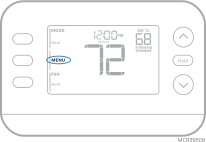
Credit: docs.honeywellhome.com
Honeywell Thermostat Models
Honeywell offers several thermostat models for home heating and cooling control. Each model has unique features but shares core functions. Understanding these models helps set your thermostat time correctly. It also improves comfort and saves energy.
Common Features
Most Honeywell thermostats allow manual or automatic time setting. They include a clear digital display for easy reading. Many models support programmable schedules for weekdays and weekends. All thermostats have temperature control with simple up and down buttons. They use batteries or connect to your home power system. The user interface is designed for simple navigation.
Differences To Note
Some models have touchscreen controls, others use buttons only. Advanced models offer Wi-Fi connectivity to control remotely. Basic models might need manual time setting every season. Programmable models let you set multiple time periods per day. Certain thermostats support voice commands through smart home devices. Screen size and backlight features vary across models. Knowing these differences helps pick the right model for your needs.
Preparing Your Thermostat
Before setting the time on your Honeywell thermostat, preparation is key. Proper setup helps avoid errors and makes the process smooth. Take a few minutes to get your thermostat ready.
Preparation involves checking power supply and knowing how to access the control panel. These steps ensure you can safely and easily set the time.
Power Requirements
Your Honeywell thermostat needs a steady power source to work. Most models use batteries or connect to your home’s electrical system. Check if your thermostat has fresh batteries installed. Weak batteries can cause the clock to reset or malfunction.
If your thermostat runs on home power, ensure the circuit breaker is on. Without power, the thermostat cannot keep time or respond to commands. Confirm power before moving to the next step.
Accessing The Control Panel
To set the time, you must reach the control panel on your thermostat. Most Honeywell models have a front cover or screen that opens or slides. Gently open the cover to expose the buttons and display.
Look for buttons labeled “Clock,” “Time,” or “Set.” These controls allow you to adjust the time settings. Knowing how to access this panel saves time and frustration.
Setting The Time Manually
Setting the time manually on your Honeywell thermostat is simple and quick. This step is important for your heating and cooling system to work correctly. The thermostat uses the time to follow your schedule and save energy. You can set the time using buttons on the device. Follow easy steps to adjust the hours and minutes precisely.
Using The Buttons
Locate the buttons on your Honeywell thermostat. Usually, there are buttons labeled “Clock,” “Set,” or “Time.” Press the “Clock” or “Time” button to start setting the time. Hold the button until the time display starts to blink. This blinking shows you can change the time now. Use the arrow or plus and minus buttons to change the numbers.
Adjusting Hours And Minutes
First, adjust the hour by pressing the up or down button. Make sure to set AM or PM correctly. After setting the hour, press the “Set” or “Clock” button again. This action moves the focus to minutes. Use the same buttons to change the minutes. When the time is correct, press the “Set” or “Clock” button once more. The blinking stops, confirming the new time is saved.
Using The Digital Display
Setting the time on your Honeywell thermostat is simple with the digital display. The screen shows clear numbers and options. You can easily adjust the time to keep your heating or cooling on schedule.
The digital display makes it easy to see what you are doing. You do not need extra tools. Just follow the steps on the screen to set the correct time quickly.
Navigating The Menu
Press the Menu button on the thermostat. The screen will show different options. Use the arrow buttons to move up or down. Find the option labeled “Set Time” or “Clock.”
Press the Select or OK button to enter the time setting mode. The hours will start blinking. Use the arrows to change the hour. Press OK to confirm the hour.
Next, the minutes will blink. Change the minutes with the arrows. Press OK again to save the minute setting. You can now see the new time on the screen.
Check Best Thermostat Pricing in Amazon
** As an Amazon Associate, I earn from qualifying purchases.
Saving The Time Settings
After setting the correct hour and minutes, look for the Save or Done button. Press it to save your changes. The display will return to the main screen.
Check the screen to make sure the time is correct. If not, repeat the steps. Saving the time ensures your thermostat runs on the right schedule. This helps save energy and keeps your home comfortable.
Syncing With Daylight Savings
Syncing your Honeywell thermostat with daylight savings ensures your home’s temperature stays comfortable. It helps keep your heating and cooling on schedule without extra effort. Adjusting the time correctly prevents any confusion or wasted energy. Let’s explore how to manage this change smoothly.
Automatic Adjustments
Many Honeywell thermostats change the time automatically for daylight savings. This feature saves you from adjusting the clock manually. Your thermostat will move the time forward or backward by one hour at the set dates. It keeps your heating and cooling programs running on the right schedule. Check your thermostat’s settings to ensure automatic updates are enabled. This way, your home stays comfortable without any interruptions.
Manual Override Options
Some models might not update the time automatically. In this case, you need to change the time yourself. Access the thermostat’s menu and find the clock or time settings. Use the buttons to set the time one hour ahead or behind. Confirm the new time and exit the menu. Manual changes help keep your heating and cooling on track during daylight savings. Always check the time after the change to avoid mistakes.

Credit: www.youtube.com
Troubleshooting Time Settings
Setting the time on your Honeywell thermostat is simple, but sometimes issues arise. Troubleshooting time settings helps keep your system running smoothly. This section covers common problems and how to fix them quickly.
Common Issues
The clock may not update after a power outage. This causes incorrect time display. Another problem is the thermostat showing the wrong AM or PM setting. Sometimes, the time may drift or reset itself without reason. These issues affect your heating and cooling schedule. Check batteries if your model uses them. Weak batteries often cause time errors.
Resetting The Thermostat
Resetting often solves time setting problems. Locate the reset button or switch in the manual. Press and hold the reset button for a few seconds. This clears errors and restores factory settings. You will need to set the time again after reset. Make sure to enter the correct time and day. A reset can also fix frozen screens or unresponsive buttons.
Maintaining Accurate Time
Maintaining accurate time on your Honeywell thermostat is key to efficient heating and cooling. The thermostat relies on the correct time to follow your programmed schedule. If the clock is wrong, your home may not stay comfortable. Simple steps help keep the time precise and avoid issues.
Battery Replacement Tips
Many Honeywell thermostats have a backup battery. This battery keeps the clock running during power outages. Check the battery every year. Use the type recommended in the manual. Replace the battery when the screen dims or resets. Always turn off the thermostat before changing the battery. Fresh batteries help keep the time accurate and protect your settings.
Regular Checks
Set a reminder to check the thermostat time monthly. Compare the thermostat clock with a reliable source, like your phone or watch. Adjust the time if it is off by a few minutes. Also, check for software updates on your Honeywell model. Updates can fix bugs and improve time accuracy. Small regular checks keep your heating and cooling on track.

Credit: www.reddit.com
Frequently Asked Questions
How Do I Set The Time On My Honeywell Thermostat?
To set the time, press the “Menu” button, select “Clock,” then use arrow keys to adjust hours and minutes. Confirm by pressing “Done” or “OK. ”
Can I Set The Honeywell Thermostat Time Manually?
Yes, you can manually set the time using the thermostat’s menu. Navigate to the clock settings and adjust the time with arrow keys.
Why Is My Honeywell Thermostat Time Incorrect?
The incorrect time may be due to power outages or battery issues. Reset the time in the settings to fix it.
How Often Should I Update My Honeywell Thermostat Clock?
Update the clock after power interruptions or daylight saving changes to keep it accurate and ensure proper scheduling.
Conclusion
Setting the time on your Honeywell thermostat is quick and easy. Follow the steps carefully to avoid mistakes. Correct time helps your thermostat run your heating or cooling efficiently. This saves energy and keeps your home comfortable. Check the time setting regularly to keep it accurate.
A properly set thermostat means better control of your indoor climate. Now, you can enjoy a cozy home without hassle. Simple steps lead to better comfort every day.
Check Best Thermostat Pricing in Amazon
** As an Amazon Associate, I earn from qualifying purchases.




