
Check Best Thermostat Pricing in Amazon
** As an Amazon Associate, I earn from qualifying purchases.
Are you struggling to set the perfect temperature on your Honeywell Home Thermostat? Getting your thermostat just right can make a big difference in your comfort and energy bills.
Whether you want to warm up your home on a chilly morning or cool down on a hot afternoon, knowing how to adjust your thermostat quickly and easily is key. In this guide, you’ll learn simple steps to take control of your Honeywell thermostat and create the ideal environment for your home.
Keep reading, and you’ll never have to guess the right temperature again!

Credit: www.reddit.com
Honeywell Thermostat Types
Honeywell offers different thermostat types to fit various needs. Each type has its own way of setting temperature. Knowing these types helps you use your thermostat better. Let’s explore the main Honeywell thermostat types.
Digital Models
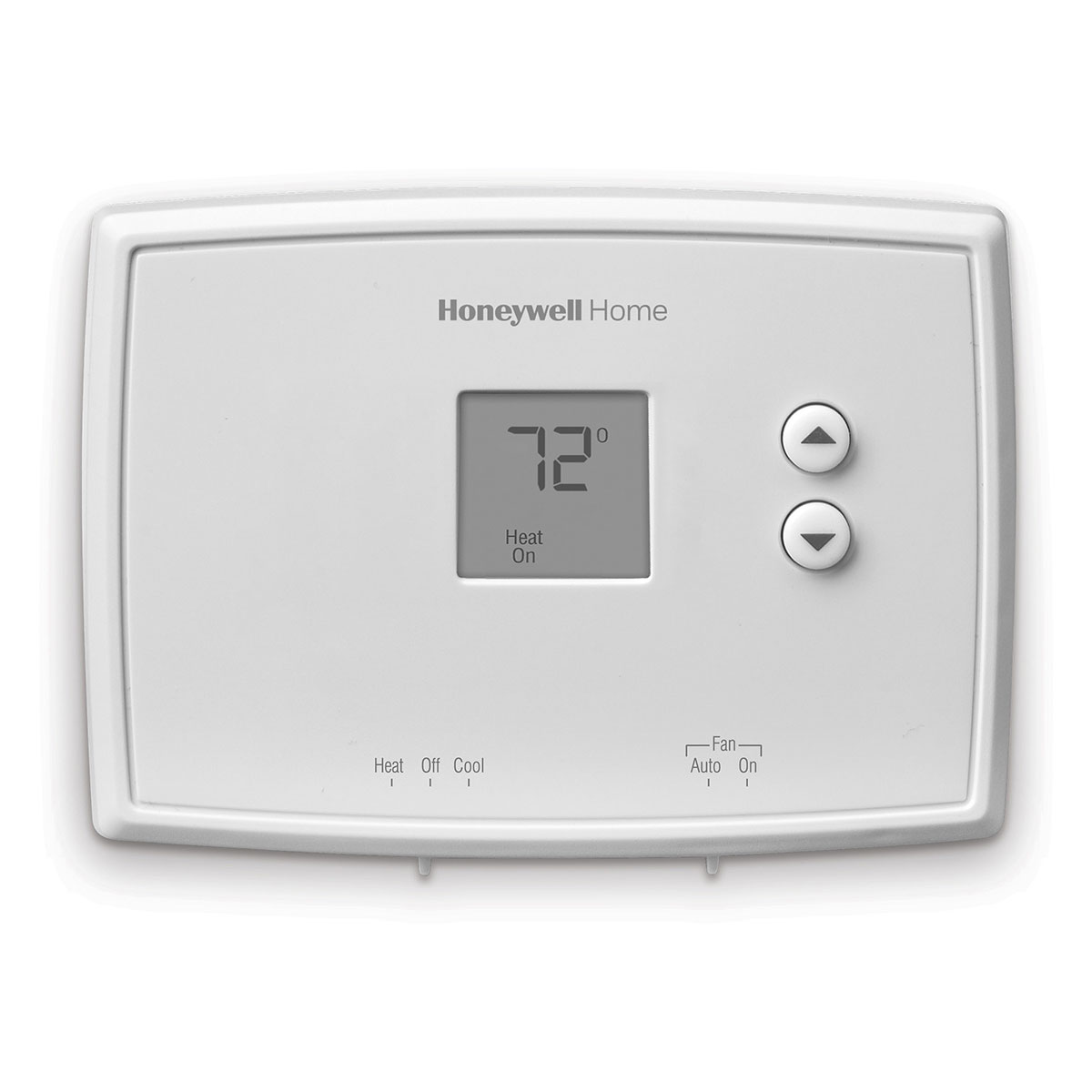
Digital thermostats show temperature on a screen. They let you adjust temperature easily with buttons. These models are simple and reliable. You set the temperature and the thermostat keeps it steady. No programming is needed. They work well for basic temperature control.
Programmable Models
Programmable thermostats let you set different temperatures for different times. You can schedule heating and cooling for the day. This saves energy and money. These models are easy to program using the display and buttons. Set your schedule once and the thermostat follows it daily.
Smart Thermostats
Smart thermostats connect to Wi-Fi and your phone. They learn your habits and adjust temperature automatically. You can control them from anywhere using an app. Some models work with voice assistants. Smart thermostats help save energy and keep your home comfortable.
Basic Temperature Adjustment
Adjusting the temperature on your Honeywell Home thermostat is simple. Basic temperature adjustment lets you control your home’s comfort quickly. You can raise or lower the temperature to suit your needs in just a few steps.
Using The Up And Down Buttons
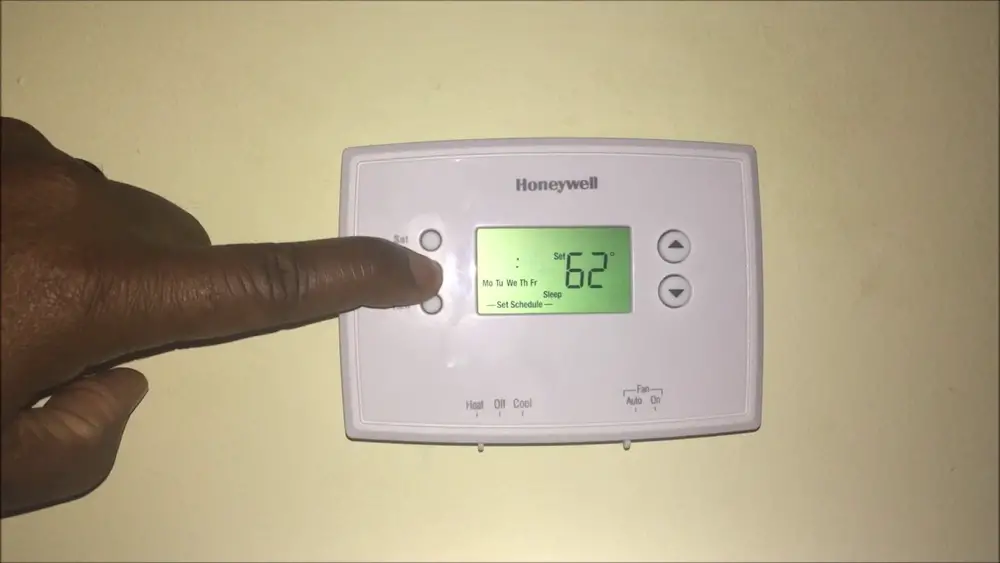
The easiest way to change the temperature is by using the up and down buttons. These buttons are usually located on the thermostat’s front panel. Press the up button to increase the temperature. Press the down button to lower it. Each press changes the temperature by one degree. Watch the display to see the new setting.
Setting Hold Temperature
Hold temperature keeps your thermostat at a fixed temperature. This stops it from changing automatically. To set hold, adjust the temperature with the buttons. Then, press the “Hold” or “Hold Temp” button. The thermostat stays at this temperature until you cancel hold. This feature is useful when you want steady heat or cool air.
Programming Temperature Schedules
Programming temperature schedules on your Honeywell Home thermostat helps save energy. It also keeps your home comfortable all day. You can set different temperatures for different times. This way, the thermostat adjusts automatically. No need to change settings manually every day.
Creating Daily Schedules
Start by selecting the day you want to program. Choose times for morning, day, evening, and night. Set the temperature for each period. For example, cooler at night and warmer in the morning. Save the schedule once you finish. Repeat for other days if needed.
Adjusting Weekend Settings
Weekends often have different routines. Set separate schedules for Saturday and Sunday. You might want warmer temperatures during the day. Or cooler settings if you stay out. Adjust the thermostat for comfort and savings. Use the weekend mode on the thermostat menu.
Overriding Scheduled Temperatures
Sometimes, you need a quick change in temperature. Use the override feature to adjust settings temporarily. This change will last until the next scheduled time. No need to rewrite the entire schedule. Overrides are perfect for unexpected weather or guests.

Credit: www.youtube.com
Check Best Thermostat Pricing in Amazon
** As an Amazon Associate, I earn from qualifying purchases.
Using The Honeywell App
The Honeywell app makes controlling your thermostat simple and smart. It lets you set the temperature from anywhere. You can save energy and keep your home comfortable. The app works on both Android and iOS devices. Start by connecting your thermostat to the app for easy control.
Connecting Your Thermostat
Download the Honeywell Home app from your device’s store. Open the app and create an account or sign in. Follow the instructions to add your thermostat. Make sure your thermostat is connected to Wi-Fi. This step is important for remote control features. The app will guide you through the setup process. After connecting, your thermostat appears on the app’s home screen.
Adjusting Temperature Remotely
Open the app to see your current home temperature. Tap the temperature display to change it. Slide up or down to raise or lower the temperature. The changes update instantly on your thermostat. Adjust settings anytime and anywhere. This feature helps you stay comfortable on the go. Use it to prepare your home before arriving.
Setting Alerts And Notifications
The app can send alerts to your phone. Get notified if the temperature goes too high or low. Receive reminders for filter changes or maintenance. Alerts help keep your system running smoothly. Enable notifications in the app settings. Choose what types of alerts you want to receive. Stay informed and protect your home easily.
Troubleshooting Temperature Settings
Setting the right temperature on your Honeywell Home thermostat should be simple. Sometimes, the thermostat does not respond as expected. This can cause frustration and discomfort. Troubleshooting temperature settings helps fix common issues fast. It ensures your home stays comfortable and your system works well.
Resetting To Factory Defaults
Resetting the thermostat can solve many problems. This step clears any wrong settings. To reset, find the reset button or menu in settings. Hold or select it until the screen changes. The thermostat returns to its original state. After reset, set the temperature again carefully.
Battery Replacement Tips
Low batteries cause many temperature setting problems. Check the battery level often. Replace batteries with fresh, high-quality ones. Use the correct battery type for your model. Open the battery cover gently. Remove old batteries and insert new ones with correct polarity. Close the cover securely. Test the thermostat after replacement.
Common Error Messages
Errors may appear on the screen during use. Common messages include “Sensor Error” or “System Fault.” These warn about temperature reading or wiring issues. Note the error code shown. Consult the user manual or Honeywell support for fixes. Some errors clear after reset or battery change. Persistent errors may need professional help.
Credit: www.honeywellstore.com
Frequently Asked Questions
How Do I Set Temperature On Honeywell Home Thermostat?
Press the up or down arrow on the thermostat display. Adjust until your desired temperature appears. The thermostat will maintain this set temperature automatically.
Can I Schedule Temperature Changes On Honeywell Thermostat?
Yes, you can program daily schedules. Use the menu to set different temperatures for morning, day, evening, and night. This saves energy and adds convenience.
Why Won’t My Honeywell Thermostat Change Temperature?
Check if the thermostat is locked or in vacation mode. Also, ensure batteries are good and the system is powered. Reset if necessary.
How To Switch Between Heating And Cooling Modes?
Press the mode button on your thermostat. Select heating, cooling, or auto mode based on your needs. The display will confirm the selected mode.
Conclusion
Setting the temperature on your Honeywell Home thermostat is simple and quick. Just follow the steps carefully. This helps keep your home comfortable all year. You can adjust settings anytime you want. Saving energy becomes easy with the right temperature.
Enjoy a cozy home without stress or confusion. Now, controlling your thermostat feels natural and clear. Try it today and see the difference.
Check Best Thermostat Pricing in Amazon
** As an Amazon Associate, I earn from qualifying purchases.




