
Check Best Thermostat Pricing in Amazon
** As an Amazon Associate, I earn from qualifying purchases.
Setting a schedule for your Honeywell thermostat can save you money and keep your home comfortable all day long. Imagine never having to adjust the temperature manually again — your thermostat knows exactly when to warm up or cool down your space.
If you want to take control of your energy use and enjoy hassle-free comfort, this guide is made for you. Keep reading, and you’ll learn simple steps to set up your Honeywell thermostat schedule quickly and easily.
- Benefits Of Scheduling Your Thermostat
- Types Of Honeywell Thermostats
- Preparing Your Thermostat For Scheduling
- Creating A Basic Schedule
- Adjusting Advanced Schedule Settings
- Using The Honeywell App For Scheduling
- Tips For Optimizing Your Thermostat Schedule
- Troubleshooting Common Scheduling Issues
- Frequently Asked Questions
- Conclusion
Benefits Of Scheduling Your Thermostat
Scheduling your Honeywell thermostat brings many advantages. It helps manage your home’s temperature easily and saves energy. Setting a schedule means your heating or cooling runs only when needed. This makes your home more comfortable and lowers your bills.
Energy Savings
Setting a schedule prevents heating or cooling an empty house. The thermostat adjusts temperature automatically. This reduces energy waste and cuts electricity costs. Small changes in temperature during the day add up to big savings.
Improved Comfort
The thermostat learns your routine. It warms or cools your home before you arrive. No more waiting in a cold or hot room. You get a pleasant temperature all day long.
Longer Equipment Life
Scheduling reduces how often your HVAC system runs. Less wear and tear means fewer repairs. Your heating and cooling system lasts longer. This saves money on maintenance and replacements.
Convenience And Control
You can set your schedule once and forget it. The thermostat works automatically without daily changes. Many Honeywell thermostats also allow remote control via apps. Adjust settings easily from anywhere.
Types Of Honeywell Thermostats
Honeywell offers different thermostat types to fit various home needs. Each type has unique features and benefits. Knowing these helps set your schedule easily and efficiently. Choose the right model to control your home’s temperature well.
Programmable Models
Programmable Honeywell thermostats allow users to set temperature schedules. You can program different times for heating or cooling. These models save energy by adjusting settings automatically. They suit homes with regular daily routines. The interface is simple and easy to use. No need for constant manual changes.
Smart Thermostats
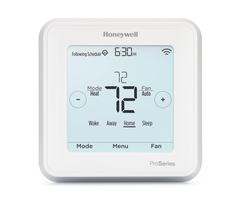
Smart thermostats connect to Wi-Fi and smartphones. They learn your habits and adjust settings automatically. Control your home’s temperature from anywhere using an app. These models offer energy reports and alerts. They work well with voice assistants too. Smart thermostats bring convenience and savings together.
Preparing Your Thermostat For Scheduling
Preparing your Honeywell thermostat for scheduling is an important first step. It ensures your device works correctly with your daily routine. Setting up the right time and date helps the thermostat follow your schedule accurately.
Before creating any schedule, you need to access the thermostat menu. This allows you to adjust settings and set the current time and date. These steps make sure your heating and cooling system runs smoothly.
Accessing The Menu
Start by waking up your thermostat screen. Press the main button or tap the screen gently. Look for a gear icon or a menu button on the display. Tap the icon to open the settings menu.
Use the arrow keys or swipe to scroll through options. Find the “Set Clock” or “Settings” option. Select it by pressing the button or tapping the screen. This leads you to the time and date settings.
Setting The Current Time And Date
Once in the clock settings, set the current hour first. Use the arrow keys or touch screen to change the numbers. Confirm the hour and move to minutes. Adjust the minutes to the exact time.
Next, set the correct date. Select the month, day, and year. Use the arrows or touch to change each number. Make sure the date matches today’s calendar day exactly.
After setting time and date, save the changes. Exit the menu and return to the main screen. Your thermostat now has the correct time and date for scheduling.
Creating A Basic Schedule
Creating a basic schedule on your Honeywell thermostat helps save energy and keep your home comfortable. The schedule controls when your heating or cooling turns on and off. Setting it up is simple and takes just a few steps.
Selecting Days
Start by choosing the days you want to program. You can set the same schedule for all weekdays or customize each day. Some thermostats allow grouping days like Monday to Friday or weekends together. Pick the option that fits your routine best.
Setting Temperature Periods
Next, divide the day into different time periods. Common periods are morning, day, evening, and night. For each period, set the temperature you want the thermostat to maintain. Lower the heat or cooling when no one is home to save energy. Adjust temperatures to your comfort during active hours.
Adjusting Advanced Schedule Settings
Adjusting advanced schedule settings on your Honeywell thermostat helps save energy and keeps your home comfortable. You can set different temperatures for different times and days. This gives you full control over your heating and cooling system.
These settings allow you to create a schedule that matches your lifestyle. You can easily change the temperature for weekdays and weekends. Also, you can use special modes like Vacation Mode for times when you are away.
Customizing Weekday And Weekend Settings
Set different temperature times for weekdays and weekends. Weekdays might need cooler or warmer temps during work hours. Weekends usually have more relaxed schedules.
Choose your preferred temperature for morning, day, evening, and night. Adjust each time period to save energy and stay comfortable. This way, your thermostat works around your daily routine.
Check Best Thermostat Pricing in Amazon
** As an Amazon Associate, I earn from qualifying purchases.
Using Vacation Mode
Vacation Mode saves energy while you are away. Set your thermostat to keep your home at a safe temperature. This prevents heating or cooling your house unnecessarily.
You can turn Vacation Mode on before leaving and off when you return. This helps reduce energy bills and protects your home from extreme temperatures.
Credit: www.youtube.com
Using The Honeywell App For Scheduling
Using the Honeywell app for scheduling your thermostat makes controlling home temperature easy. The app lets you set and change your schedule from anywhere. This adds comfort and can save energy.
The app is simple to use and helps keep your home cozy. It works with most Honeywell thermostat models. Follow the steps below to connect your thermostat and set schedules remotely.
Connecting Your Thermostat
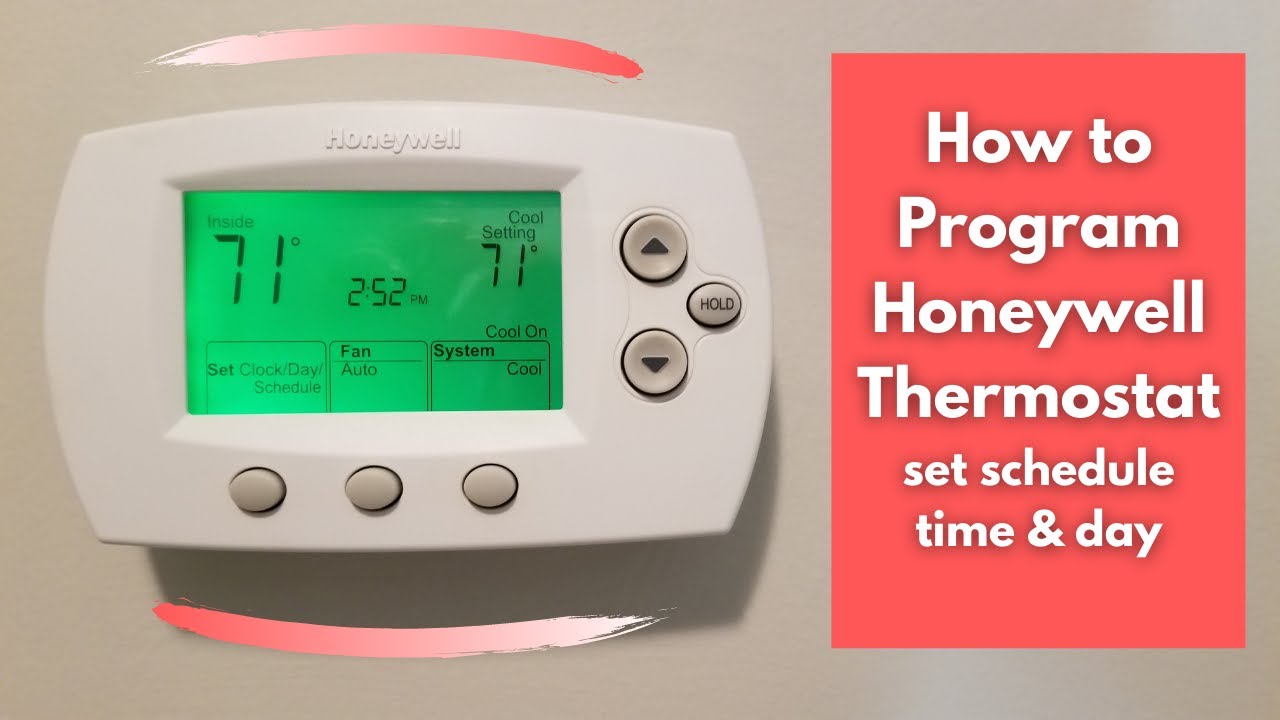
First, download the Honeywell Home app from your app store. Open the app and create an account or sign in. Next, add your thermostat by following the on-screen instructions. The app will guide you to connect your thermostat to your Wi-Fi network. Make sure your phone is near the thermostat during setup. Once connected, your thermostat will appear in the app dashboard. This connection lets you control your thermostat from your phone anytime.
Setting Schedules Remotely
Open the app and select your thermostat. Find the schedule or programming section in the menu. Choose the days and times you want to set your temperature. You can create different schedules for weekdays and weekends. Enter the temperatures you prefer for each time slot. Save your schedule, and the thermostat will follow it automatically. You can adjust the schedule anytime through the app. This flexibility helps you keep your home comfortable and energy-efficient without being at home.
Tips For Optimizing Your Thermostat Schedule
Setting a schedule for your Honeywell thermostat helps control your home’s temperature efficiently. A good schedule saves energy and keeps your home comfortable. Simple changes to your schedule can make a big difference in energy use and comfort.
These tips focus on easy ways to improve your thermostat schedule. They help you use less energy and adjust your settings with the seasons.
Energy-saving Practices
Set your thermostat lower in winter when you are away or sleeping. Raise the temperature in summer during the same times. Avoid heating or cooling an empty house. Use programmable settings to make these changes automatic. Small changes like 2 to 3 degrees can save a lot of energy. Use your Honeywell’s smart features to track your energy use. This helps find the best times to save power without losing comfort.
Adapting To Seasonal Changes
Change your thermostat schedule as seasons shift. In spring and fall, use milder settings to save energy. Adjust your heating and cooling times as days get longer or shorter. This keeps your home comfortable without wasting energy. Check your schedule every few months to match the weather. Your Honeywell thermostat can help by reminding you to update settings. Keeping your schedule updated reduces energy bills and makes your home cozy all year.
Credit: www.alarmgrid.com
Troubleshooting Common Scheduling Issues
Setting a schedule for your Honeywell thermostat should be simple. Sometimes, small problems stop the schedule from working right. This section helps you fix common issues fast. Follow these tips to keep your thermostat running smoothly and your home comfortable.
Schedule Not Saving
Check that you finish all steps before leaving the menu. The thermostat may need you to press “Save” or “Done.” Without this, the schedule won’t store. Also, make sure the batteries have enough power. Low batteries can stop settings from saving. Try restarting the thermostat if it still won’t save. This can clear minor errors and let you save again.
Thermostat Not Following Schedule
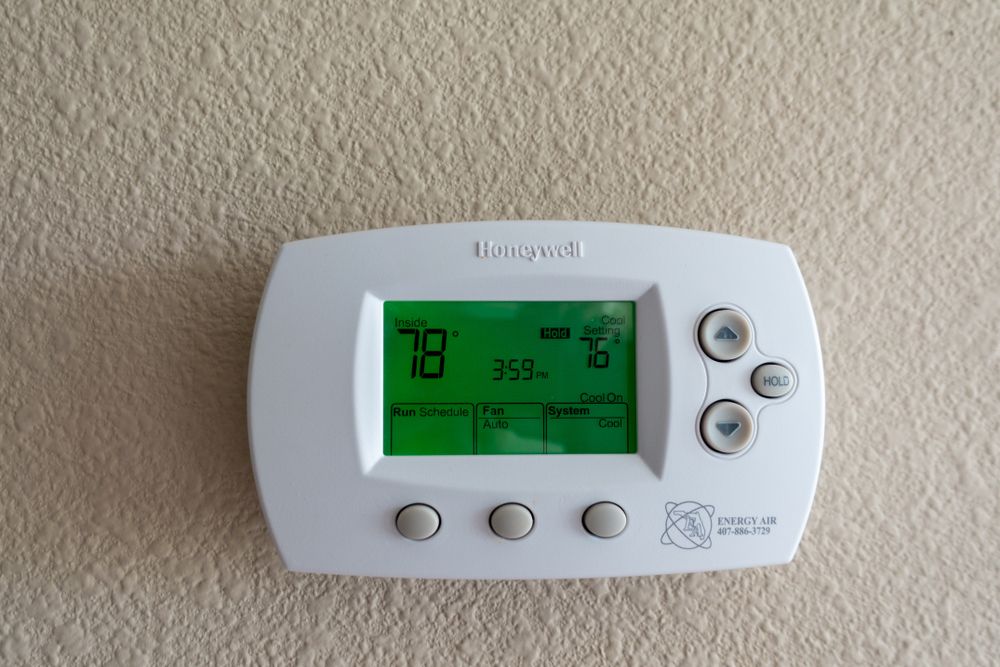
Confirm the thermostat is set to “Auto” mode. Manual settings override the schedule. Look for any active override or hold settings. These stop the schedule from working until cleared. Check the current time and day on the thermostat. Wrong time or date can cause the schedule to act oddly. Reset the schedule if problems continue. This clears any mistakes and gives you a fresh start.
Credit: www.ambientedge.com
Frequently Asked Questions
How Do I Program A Honeywell Thermostat Schedule?
To program your Honeywell thermostat, access the menu and select “Schedule. ” Set your preferred temperature for each time slot. Save settings to activate the schedule. This helps optimize comfort and energy savings efficiently.
Can I Set Different Temperatures For Weekdays And Weekends?
Yes, Honeywell thermostats allow separate schedules for weekdays and weekends. Customize temperature settings based on your routine. This flexibility improves comfort and reduces energy use when you’re away or sleeping.
What Is The Best Time To Schedule Temperature Changes?
Set temperature changes around your daily routine, such as before waking and after leaving home. Adjust settings for when you sleep or return. This maximizes energy savings without sacrificing comfort.
How Do I Reset My Honeywell Thermostat Schedule?
To reset, navigate to the settings menu and select “Reset Schedule” or “Factory Reset. ” Confirm the action. This clears previous settings, allowing you to start fresh with a new schedule.
Conclusion
Setting a schedule on your Honeywell thermostat saves energy and money. It keeps your home comfortable all day and night. You can easily change the settings anytime you want. This helps your heating and cooling work better. Take a few minutes to set up your schedule today.
Small steps like these make a big difference. Enjoy a cozy home without wasting power. Simple, smart, and easy to do.
Check Best Thermostat Pricing in Amazon
** As an Amazon Associate, I earn from qualifying purchases.




