
Check Best Thermostat Pricing in Amazon
** As an Amazon Associate, I earn from qualifying purchases.
Is your Honeywell Home Thermostat acting up or not responding the way it should? Sometimes, a simple restart can fix common issues and get your system back on track quickly.
In this guide, you’ll learn exactly how to restart your Honeywell Home Thermostat step-by-step—no confusing tech jargon, just clear and easy instructions. Keep reading to regain control of your home’s comfort without any hassle.
Why Restart Your Thermostat
Restarting your Honeywell Home thermostat can solve many common problems. It refreshes the system and clears minor bugs. A quick restart often restores normal function without extra tools or costs.
Sometimes, the thermostat may freeze or stop responding. Restarting helps to reset the device and improve performance. It also updates the system to work correctly with new settings or schedules.
Fix Unresponsive Thermostat
The thermostat may stop reacting to your commands. It can freeze on the screen or buttons. Restarting resets the device and brings it back to life.
Improve Temperature Accuracy
Incorrect temperature readings cause discomfort. Restarting helps the thermostat recalibrate sensors. This ensures better temperature control in your home.
Resolve Connectivity Issues
Sometimes the thermostat loses Wi-Fi connection. Restarting can restore network links quickly. This keeps remote control features working properly.
Apply Software Updates
Updates often require a restart to install. Restarting your thermostat ensures it runs the latest software. This improves security and adds new features.
Types Of Honeywell Thermostats
Honeywell offers different types of thermostats to suit various home needs. Knowing the type helps you restart the device correctly. Each model has unique features and settings. Understanding these can make the process easier and faster.
Smart Thermostats
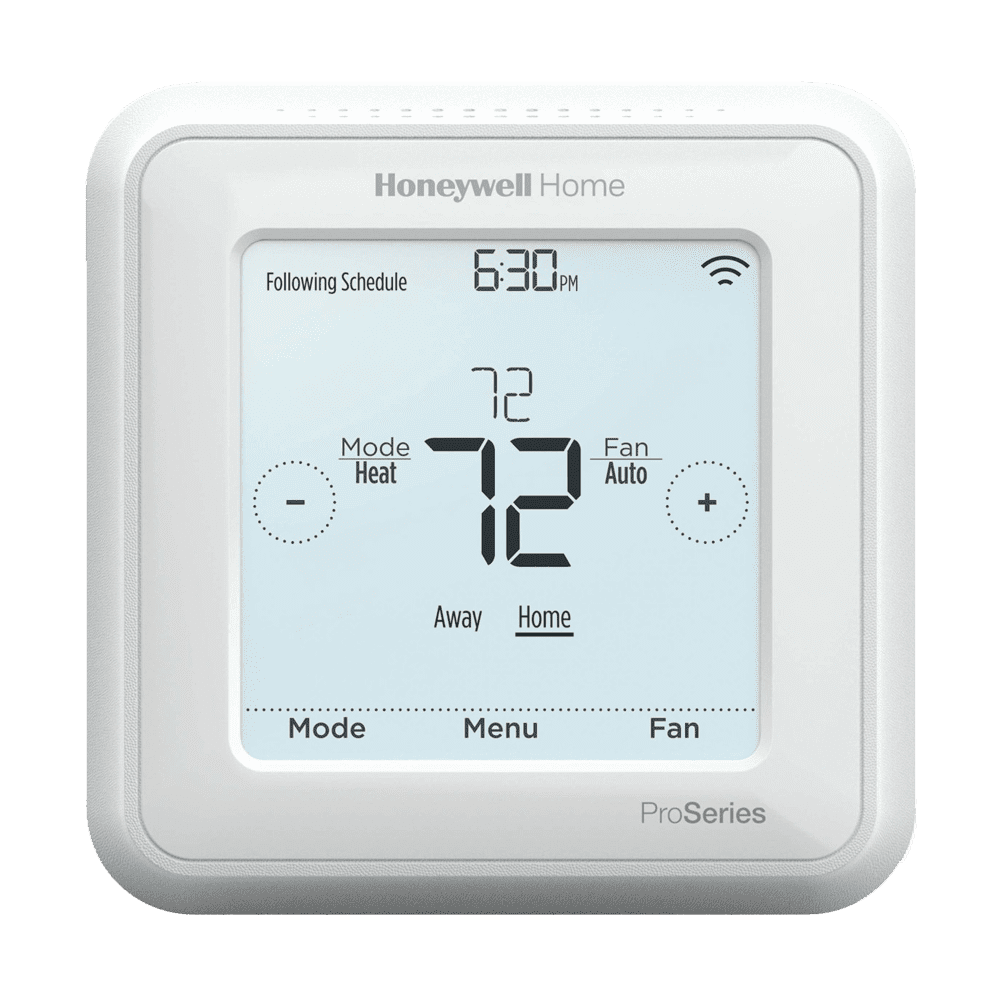
Smart thermostats connect to Wi-Fi for remote control. You can adjust settings using a phone app. These models learn your routine and save energy. Restarting may require app access or physical buttons. They often have touchscreens and advanced options.
Non-programmable Models
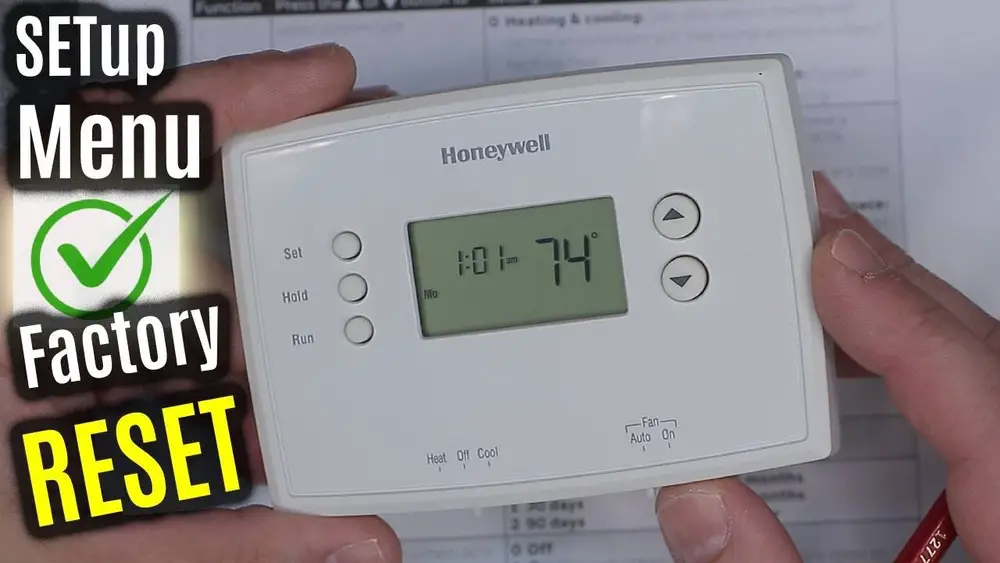
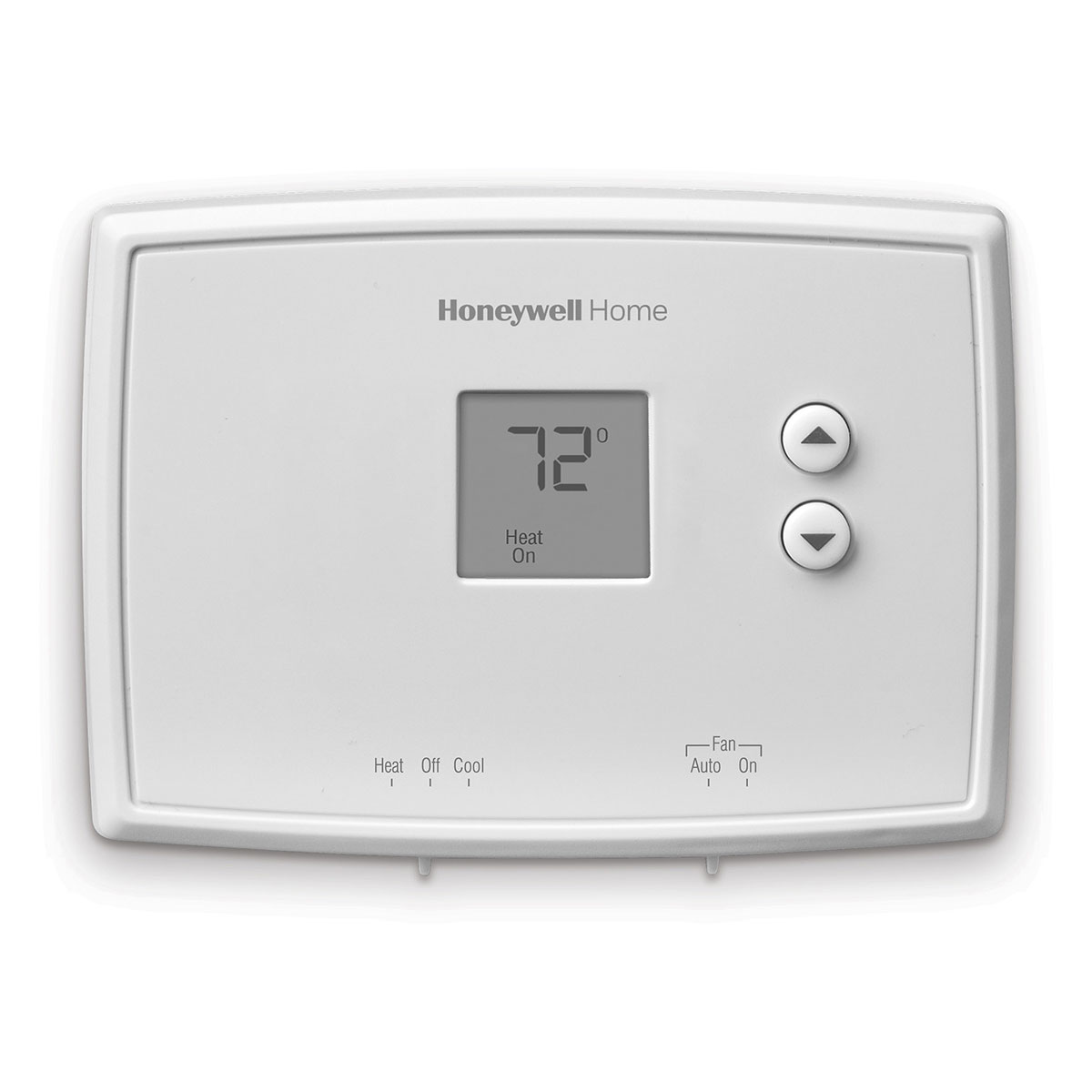
Non-programmable thermostats are simple and easy to use. They have basic controls for manual temperature changes. These models lack scheduling features. Restarting is straightforward, usually done by pressing a reset button or turning the power off and on.
Programmable Models
Programmable thermostats allow you to set schedules for heating and cooling. They help save energy by adjusting temperatures automatically. Restarting may involve menu navigation or pressing specific buttons. These models often have small digital displays and buttons for programming.
When To Restart Your Thermostat
Restarting your Honeywell Home thermostat can fix many common problems. Knowing when to restart helps avoid bigger issues. It also keeps your heating and cooling working well.
Some signs clearly show the thermostat needs a restart. Acting quickly can save time and prevent discomfort. Here are key moments to restart your device.
Thermostat Is Unresponsive
The screen freezes or stops responding to touch. Buttons do not work as expected. The device seems stuck on one screen. Restarting often solves this problem fast.
Temperature Settings Don’t Change
You adjust the temperature, but the system ignores it. The thermostat shows a different temperature than the room’s actual one. Restarting can reset the connection and fix this issue.
Wi-fi Connection Problems
The thermostat disconnects from your home Wi-Fi frequently. You cannot control it from your phone or app. Restarting the device helps re-establish a stable connection.
After Power Outage
Electricity cuts off suddenly and returns later. The thermostat may lose its settings or stop working properly. Restarting ensures it resets and functions normally.
Unusual Behavior Or Error Messages
The thermostat shows strange error codes or acts oddly. It may turn on and off by itself. Restarting clears temporary glitches and restores normal operation.
Restarting Smart Thermostats
Restarting a smart thermostat can solve many small issues quickly. It refreshes the device and clears minor errors. Restarting helps the thermostat work smoothly again. The process is simple and takes only a few minutes. Below are two easy ways to restart your Honeywell Home thermostat.
Using The Touchscreen
First, access the main menu on the touchscreen. Look for the settings or system option. Find the restart or reboot choice in the menu. Tap the restart option to begin the process. The thermostat will turn off and on by itself. Wait a moment for the screen to light up again. This method is quick and does not remove your settings.
Power Cycle Method
Turn off the thermostat by removing it from the wall plate. If needed, switch off the circuit breaker connected to the thermostat. Wait about 30 seconds to one minute. Turn the power back on or reattach the thermostat to the wall. The device will boot up fresh and may fix small glitches. This method is helpful if the touchscreen is unresponsive.
Restarting Non-smart Thermostats
Restarting a Honeywell Home non-smart thermostat can fix many issues. It refreshes the system and clears small glitches. This process is simple and does not need special tools.
Non-smart thermostats work with basic controls and batteries. They do not connect to Wi-Fi or apps. Restarting these models often involves removing power briefly.
Removing Batteries
Locate the battery compartment on your thermostat. Usually, it is behind the front cover. Gently open the cover to access the batteries.
Take out the batteries carefully. Wait for about one minute to let the thermostat reset. Reinsert the batteries in the correct position. Close the battery cover firmly.
Check Best Thermostat Pricing in Amazon
** As an Amazon Associate, I earn from qualifying purchases.
This step helps clear any minor errors in the system. The thermostat should restart and work normally again.
Power Reset Procedure
Turn off the power to your thermostat at the circuit breaker. This stops electricity from reaching the device. Leave the power off for about 30 seconds.
Turn the circuit breaker back on to restore power. The thermostat will reboot and refresh its settings. Check if the display and controls respond correctly.
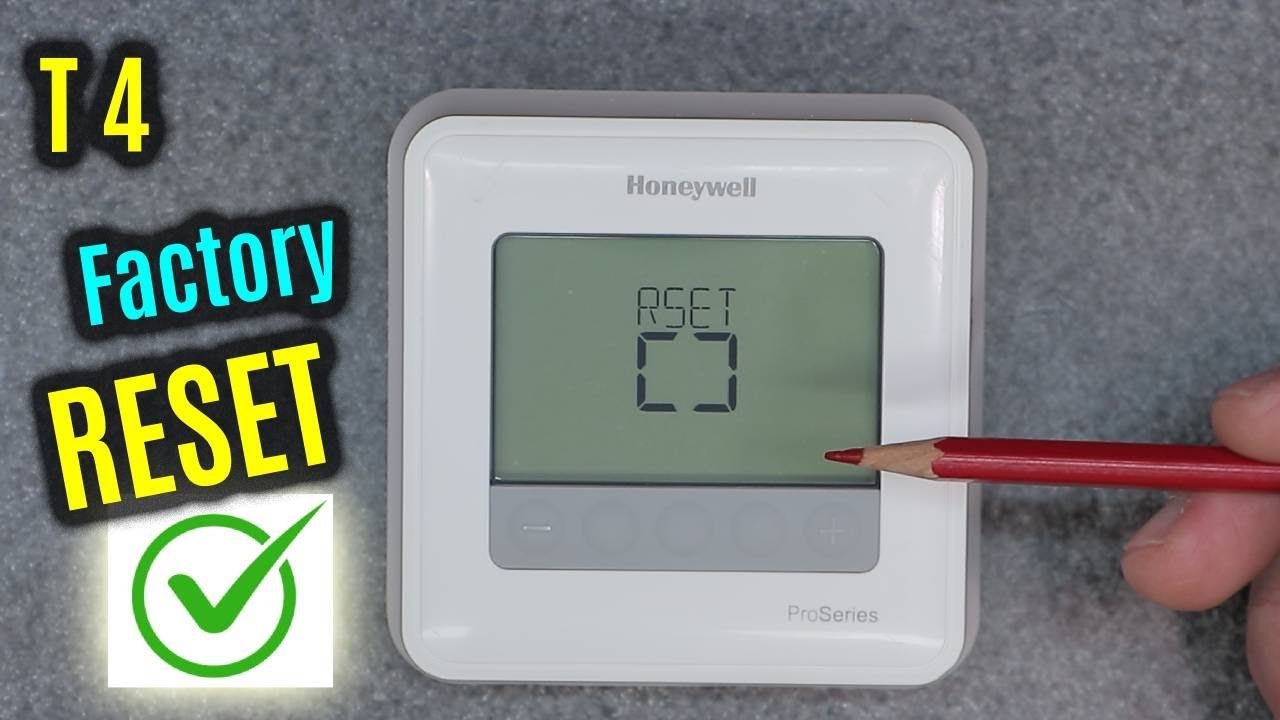
A power reset can fix frozen screens or unresponsive buttons. It is a safe way to restart without removing batteries.
Credit: www.youtube.com
Troubleshooting Common Issues
Troubleshooting common issues with your Honeywell Home Thermostat helps keep your system running smoothly. Many problems are easy to fix with a quick restart. Understanding these issues saves time and avoids costly repairs.
Unresponsive Screen
An unresponsive screen often means the thermostat needs a reset. Press and hold the reset button for about 5 seconds. If this does not work, check the batteries or power supply. Dirty or loose wires can also cause screen problems. Clean connections carefully and try again.
Connectivity Problems
Connectivity issues can stop your thermostat from syncing with your phone or Wi-Fi. Restart your router and thermostat to refresh the connection. Make sure the thermostat is within Wi-Fi range. Update the thermostat software to fix bugs. Remove and re-add the device in the app if needed.
Temperature Inaccuracy
Temperature readings may be wrong due to sensor errors. Restarting the thermostat can reset the sensors. Check if the thermostat is placed near heat sources or drafts. Clean the thermostat to remove dust on the sensors. Calibrate the thermostat by following the manual instructions.
Tips To Avoid Frequent Restarts
Restarting your Honeywell Home Thermostat too often can be frustrating. Frequent restarts may indicate underlying issues. Avoiding these helps your thermostat work smoothly and saves time.
Simple care and proper use keep the thermostat stable. Follow practical tips to reduce the need for constant restarts.
Check Your Wi-fi Connection
Weak or unstable Wi-Fi causes the thermostat to lose connection. This can trigger restarts. Place your router close to the thermostat. Avoid obstacles like walls or metal objects. Regularly reset your router to maintain strong signals.
Update Thermostat Software
Old software may cause glitches and restarts. Check for updates regularly. Install updates promptly to fix bugs and improve performance. Updated software keeps your thermostat running smoothly.
Keep Thermostat Clean
Dust and dirt can block sensors or buttons. This may cause errors needing restarts. Clean the thermostat gently with a soft cloth. Avoid water or harsh cleaners near the device.
Use Proper Power Supply
Fluctuations in power can cause the thermostat to restart. Use a stable power source. Avoid using batteries that are old or weak. If wired, check for loose connections or damaged wires.
Reset Only When Necessary
Restarting the thermostat too often can wear it out. Use the reset option only when needed. Try adjusting settings or troubleshooting before restarting. This helps extend the device’s life.
Credit: topshelfhomeservice.com
Credit: www.honeywellstore.com
Frequently Asked Questions
How Do I Restart My Honeywell Home Thermostat?
To restart your Honeywell Home thermostat, press and hold the reset button for 5 seconds. If no button exists, remove the batteries for 30 seconds and reinsert them.
Why Restart A Honeywell Home Thermostat?
Restarting fixes minor glitches, refreshes the system, and resolves connectivity issues. It helps maintain optimal thermostat performance and accuracy.
Will Restarting Erase My Honeywell Thermostat Settings?
No, restarting typically does not erase your settings. It only reboots the device without affecting your programmed schedules or preferences.
How Often Should I Restart My Honeywell Thermostat?
Restart your thermostat only when it malfunctions or after firmware updates. Frequent restarts are unnecessary and won’t improve performance.
Conclusion
Restarting your Honeywell Home Thermostat can fix many small issues. It takes just a few simple steps. Doing this helps your thermostat work better. Keep your home comfortable without any hassle. Remember to follow the exact steps carefully. This way, you avoid making mistakes.
A quick restart might save you time and money. Try restarting before calling for help. It’s an easy fix anyone can do. Stay comfortable and in control of your home’s temperature.
Check Best Thermostat Pricing in Amazon
** As an Amazon Associate, I earn from qualifying purchases.




