
Check Best Thermostat Pricing in Amazon
** As an Amazon Associate, I earn from qualifying purchases.
Connecting your Sensi Thermostat to WiFi might seem tricky at first, but it’s easier than you think. Imagine controlling your home’s temperature right from your phone, no matter where you are.
Sounds convenient, right? In this guide, you’ll learn simple, step-by-step instructions to get your thermostat online quickly. By the end, you’ll enjoy the comfort and savings that come with smart temperature control. Ready to make your home smarter? Let’s dive in and get your Sensi Thermostat connected to WiFi today.
Prepare Your Thermostat
Preparing your Sensi thermostat is the first step to connect it to WiFi. This process ensures your device is ready and compatible for a smooth setup. Follow these simple steps to get started.
Check Compatibility
Make sure your thermostat model supports WiFi connection. Not all Sensi thermostats have this feature. Check the model number on the back or in the manual. Visit the official Sensi website for a list of WiFi-enabled models. Confirm your home WiFi network is 2.4 GHz, as many thermostats do not support 5 GHz.
Power Up The Device
Connect your thermostat to power. Use the included wiring and follow the installation guide carefully. Turn on your HVAC system to supply power to the thermostat. Wait for the screen to light up. A powered device is essential for WiFi setup. Without power, the thermostat cannot connect to your network.
Reset Wifi Settings
Clear any old WiFi settings before connecting to a new network. On the thermostat menu, find the WiFi or network settings. Select the option to reset or forget the current network. This step avoids connection errors during setup. After resetting, your thermostat will be ready to find your home WiFi.
Gather Network Information
Gathering your network information is the first step to connect your Sensi Thermostat to WiFi. Without the right details, the connection process will not work. Knowing your WiFi name and password helps the thermostat find and join your home network. Also, the Sensi Thermostat works best with a 2.4 GHz WiFi connection, not 5 GHz. This section explains how to find these important details easily.
Find Your Wifi Name
Your WiFi name is also called SSID. It is the name you see when you search for networks on your phone or computer. Usually, it looks like a word or a combination of letters and numbers. Check your router for a label. Many routers have the WiFi name printed on a sticker. You can also find it in your device’s WiFi settings.
Locate Your Password
The WiFi password protects your network from unwanted users. It is needed to connect new devices like the Sensi Thermostat. You can find this password on the same sticker as your WiFi name, on the router. If you changed it before, use the new password you created. Be careful to type the password exactly, including capital letters and symbols.
Ensure 2.4 Ghz Connection
The Sensi Thermostat supports only 2.4 GHz WiFi bands. Many routers offer both 2.4 GHz and 5 GHz options. The 2.4 GHz band has a longer range but slower speed. Check your router settings to confirm the 2.4 GHz network is active. Connect your phone or computer to the 2.4 GHz network to test it. This step avoids connection issues later.
Connect Thermostat To Wifi
Connecting your Sensi thermostat to WiFi lets you control it from anywhere. This feature saves energy and keeps your home comfortable. Follow these simple steps to connect the thermostat to your wireless network.
Access Wifi Menu On Thermostat
Start by waking up the thermostat screen. Tap the menu button on the device. Look for the WiFi or Network option and select it. This opens the WiFi menu where you can manage connections.
Select Your Network
The thermostat scans for nearby WiFi networks. Scroll through the list to find your home network name. Tap your network to select it. This tells the thermostat which WiFi to join.
Enter Password Correctly
Use the on-screen keyboard to type your WiFi password. Be careful with uppercase letters and numbers. Enter the password exactly as it appears. Confirm the password to connect the thermostat to WiFi.

Credit: techniart.com
Use The Sensi App
Using the Sensi app is the easiest way to connect your Sensi thermostat to WiFi. The app guides you through each step. It makes setup fast and simple. You can control your thermostat right from your phone once connected.
Download And Install App
First, download the Sensi app from the App Store or Google Play. The app is free and small in size. Installing it takes only a few seconds. Make sure your phone has enough storage for the app.
Create Or Log Into Account
Open the app after installation. You must create a new account or log in. Use a valid email address and create a strong password. This keeps your thermostat settings safe and private.
Follow In-app Setup
The app will guide you through the WiFi connection process. It will ask you to select your thermostat model. Then, choose your home WiFi network and enter the password. The app confirms when your thermostat connects successfully.
Troubleshoot Connection Issues
Sometimes, your Sensi Thermostat may have trouble connecting to WiFi. This can stop it from working properly. Troubleshooting connection issues helps fix these problems fast. Follow simple steps to check and solve common connection problems. This keeps your thermostat running smoothly and saves time.
Check Best Thermostat Pricing in Amazon
** As an Amazon Associate, I earn from qualifying purchases.
Check Signal Strength
Weak WiFi signal can cause connection issues. Move your thermostat closer to the router. Avoid walls or metal objects that block signals. Use a phone or laptop to test signal strength near the thermostat. Strong signal means better connection and faster response.
Restart Router And Thermostat
Restarting can fix many network problems. Turn off your router and wait 30 seconds. Turn it back on and wait until fully connected. Then, restart your Sensi Thermostat. This refreshes the connection and clears temporary glitches.
Update Thermostat Firmware
Outdated firmware can cause WiFi issues. Check for updates in the Sensi app or on the thermostat. Install any available updates. Updated firmware improves performance and fixes bugs that affect connectivity.
Credit: sensi.copeland.com
Confirm Successful Connection
Confirming a successful connection between your Sensi thermostat and WiFi is crucial. It ensures your device works smoothly and you can control it anytime. Checking the connection helps avoid future problems with temperature control and remote access.
Take a few minutes to verify the connection and test its features. This step gives peace of mind that your smart thermostat is ready to use. Follow the simple checks below to confirm the setup.
Verify Network Status
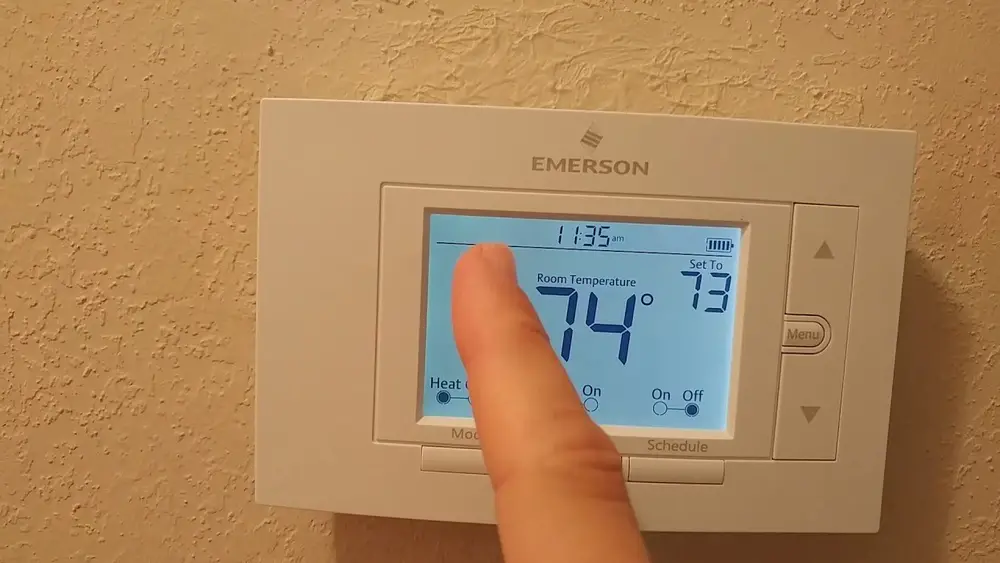
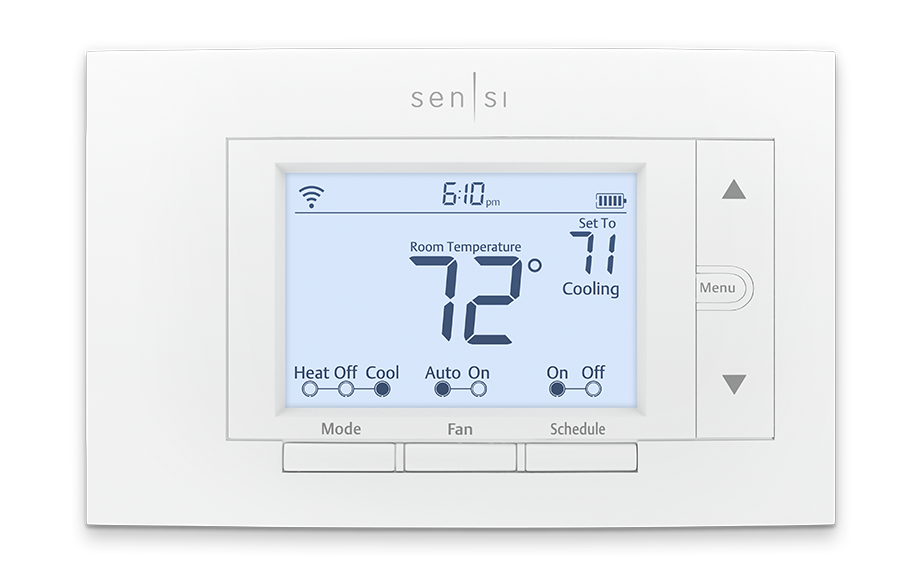
First, check the network status on your Sensi thermostat screen. Look for a WiFi icon or signal strength indicator. A solid icon means the thermostat is connected properly.
You can also open the Sensi app on your phone. The app shows the current connection status. If it says “Connected,” the thermostat is online and linked to your WiFi.
Test Remote Access
Try controlling your thermostat from outside your home network. Use the app on mobile data or a different WiFi. Adjust the temperature or mode remotely.
If the changes update quickly on the thermostat, remote access works. This test confirms your device communicates with the app through the internet.
Adjust Settings Remotely
Change settings like temperature, schedule, or fan speed using the app. Make small adjustments to see if the thermostat responds.
Remote control allows easy comfort management from anywhere. Confirming this feature means you can control heating or cooling without being home.

Credit: www.youtube.com
Frequently Asked Questions
How Do I Connect Sensi Thermostat To Wifi?
To connect your Sensi Thermostat to WiFi, open the Sensi app and follow the setup prompts. Select your WiFi network and enter the password. Ensure the thermostat is in setup mode and within range of your router for a smooth connection.
Why Won’t My Sensi Thermostat Connect To Wifi?
Check if your WiFi password is correct and the thermostat is near the router. Restart your router and thermostat. Ensure your network supports 2. 4 GHz, as Sensi may not work on 5 GHz. Update the thermostat firmware if needed.
Can I Use Sensi Thermostat Without Wifi?
Yes, you can manually control the Sensi Thermostat without WiFi. However, remote access and smart features require an internet connection. WiFi enables app control, scheduling, and integration with smart home devices.
What Wifi Frequency Does Sensi Thermostat Support?
Sensi Thermostat supports only 2. 4 GHz WiFi networks. It does not connect to 5 GHz networks. Make sure your router broadcasts a 2. 4 GHz signal for successful setup and operation.
Conclusion
Connecting your Sensi thermostat to WiFi is simple and quick. Follow the steps carefully, and you will control your thermostat remotely. A strong WiFi signal helps keep the connection steady. Check your network settings if problems arise. Enjoy the comfort of adjusting temperature from anywhere.
This small setup improves your home’s energy use. Stay cozy and save money with ease. Remember, patience and clear instructions make the process smooth. Now, your Sensi thermostat works smarter for you.
Check Best Thermostat Pricing in Amazon
** As an Amazon Associate, I earn from qualifying purchases.




