
Check Best Thermostat Pricing in Amazon
** As an Amazon Associate, I earn from qualifying purchases.
Are you struggling to set the right time on your Honeywell Home thermostat? Getting the clock accurate is key to making sure your heating and cooling run exactly when you need them.
If your thermostat’s time is off, your home might be too hot or too cold at the wrong moments. Don’t worry—changing the time on your Honeywell thermostat is simpler than you think. In this guide, you’ll learn step-by-step how to fix the time quickly and easily.
Keep reading, and take control of your comfort today!
Honeywell Thermostat Models
Honeywell offers many thermostat models to suit different home needs. Each model has unique features and settings. Knowing your model helps in changing the time correctly. This section explains the common models and their differences.
Common Models
Honeywell thermostats come in several popular types. The T5 and T6 are smart thermostats. They connect to Wi-Fi and can be controlled with apps.
The RTH series, like RTH221B and RTH2300, are basic digital models. They have simple displays and manual buttons.
The Lyric T5 is a newer model with touch controls. It also supports voice commands through smart home devices.
Model Differences
Basic models like RTH221B use physical buttons for setting time. The display is small and easy to read.
Smart models like T5 use a touchscreen or app. Time changes can be done on the device or remotely.
Some models update time automatically via Wi-Fi. Others need manual time changes during daylight saving time.
Knowing these differences helps you adjust the time smoothly on your Honeywell thermostat.

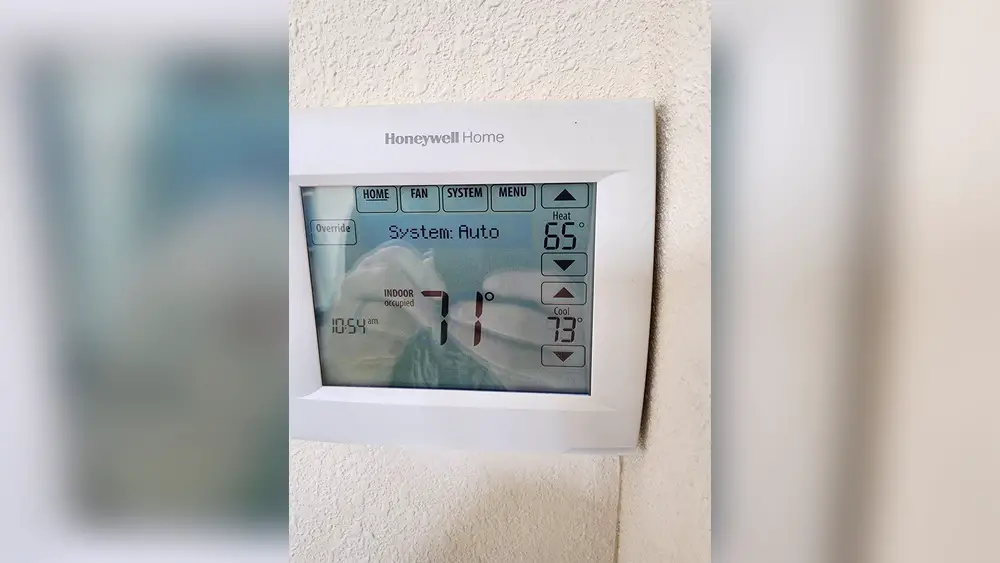
Credit: www.reddit.com
Accessing Time Settings
Changing the time on your Honeywell Home thermostat starts with accessing the time settings. This step is essential for setting accurate schedules and saving energy. The process is simple and does not take long.
You need to find the right menu and make sure the controls are ready for changes. Each model may look a little different, but the steps are similar.
Navigating The Menu
First, press the “Menu” button on your thermostat. This opens the main settings screen. Use the arrow buttons to scroll through options. Look for “Time” or “Clock” settings. Highlight the option and press “Select” or “OK.”
The screen will show the current time. You can now change it as needed. Take your time to avoid mistakes.
Unlocking The Controls
Some Honeywell thermostats lock the controls to prevent accidental changes. Check if your device has a lock symbol on the screen. If yes, press and hold the “Hold” or “Lock” button for a few seconds. This will unlock the controls.
Once unlocked, you can adjust the time. After changing, lock the controls again if needed to keep settings safe.
Adjusting The Time
Adjusting the time on your Honeywell Home thermostat is simple and quick. Correct time settings ensure your heating and cooling work on schedule. This section breaks down how to set the hour, minutes, and AM or PM.
Setting The Hour
Press the “Menu” button to access the settings. Use the arrow keys to find “Set Time” or “Clock.” Press “Select” or “OK.” The hour digits will start blinking. Use the up and down arrows to change the hour. Stop when the correct hour shows. Press “OK” or “Next” to move on.
Check Best Thermostat Pricing in Amazon
** As an Amazon Associate, I earn from qualifying purchases.
Setting The Minutes
After setting the hour, the minutes will blink. Use the arrow keys to adjust the minutes. Move slowly to get the exact number. Press “OK” to confirm the minutes. The time will now be almost set. One last step remains.
Am And Pm Settings
Check if your thermostat uses 12-hour format. If yes, choose AM or PM by pressing the arrow keys. Make sure it matches the current part of the day. Confirm your choice by pressing “OK.” Your thermostat clock is now set correctly.

Credit: www.youtube.com
Saving And Exiting
After adjusting the time on your Honeywell Home Thermostat, saving your changes is key. This step ensures the new settings stay in place and work correctly. Exiting the menu properly avoids losing your adjustments or causing errors in the system.
Confirming Changes
To confirm your new time, press the “Save” button on the screen. Watch for a message that says the settings are saved. This message means your changes are now active. Do not turn off the thermostat during this process. It helps the device store the correct time safely.
Returning To Main Screen
After saving, exit the settings menu by pressing the “Home” or “Back” button. This action returns you to the main screen. The thermostat now shows the updated time. Check the display to be sure the change took effect. You can now continue using your thermostat normally.
Troubleshooting Time Issues
Time issues on your Honeywell Home Thermostat can cause frustration. The clock might not update correctly or lose time. These problems affect your heating and cooling schedule. Troubleshooting these issues is simple and saves time. Follow these tips to fix common time problems quickly.
Clock Not Updating
The thermostat clock may stop updating due to power interruptions. Check if the thermostat is properly connected to power. A weak Wi-Fi signal can also prevent time updates. Restart your router and thermostat to refresh the connection. Make sure the thermostat firmware is up to date. Sometimes, a manual reset of the clock is necessary. Refer to your user guide for reset instructions. This step often restores the correct time.
Battery Replacement Tips
Weak or dead batteries cause time loss on your thermostat. Replace the batteries every year or when the low battery alert appears. Use high-quality alkaline batteries for better performance. Remove old batteries carefully to avoid damage. Insert new batteries matching the correct polarity. After replacement, check the clock and adjust if needed. Regular battery care prevents future time issues and keeps your system running smoothly.
Tips For Accurate Time Settings
Setting the correct time on your Honeywell Home thermostat is important. Accurate time helps the thermostat follow your schedule. It saves energy and keeps your home comfortable. Use these tips to ensure your thermostat shows the right time.
Syncing With Daylight Saving
Adjust the time when daylight saving starts or ends. Many Honeywell models allow automatic changes. Check your thermostat settings to enable this feature. If it does not update automatically, change the time manually. This keeps your heating and cooling on track.
Regular Time Checks
Check the time on your thermostat regularly. Batteries or power outages can cause the time to reset. Compare the thermostat clock with a reliable source, like your phone or watch. Fix any difference quickly. This helps your system run smoothly every day.

Credit: www.youtube.com
Frequently Asked Questions
How Do I Set The Time On My Honeywell Thermostat?
To set the time, press the Menu button, select “Time,” then use the arrow keys to adjust hours and minutes. Confirm by pressing “Done” or “OK. ” This ensures accurate scheduling and efficient temperature control.
Can I Change The Time Format On Honeywell Thermostats?
Yes, you can switch between 12-hour and 24-hour formats. Access the settings menu, find “Time Format,” and select your preferred option. This customization improves readability and suits your personal preference.
Why Is My Honeywell Thermostat Showing The Wrong Time?
Incorrect time usually results from power interruptions or battery issues. Reset the time manually in settings or replace batteries if applicable. Correct time ensures proper heating and cooling schedules.
Is It Necessary To Update The Time After Daylight Saving?
Yes, you should update the time after daylight saving changes. Some Honeywell models adjust automatically, but manual updates guarantee accurate system operation and energy efficiency.
Conclusion
Changing the time on your Honeywell Home thermostat is simple and quick. Just follow the steps carefully and adjust the clock as needed. A correct time setting helps your thermostat work better. It keeps your home comfortable all day long.
Regularly check the time, especially after power outages. This small task can save energy and money. Now, you can control your heating and cooling with ease. No need to call for help every time. Stay comfortable and save energy with the right thermostat time.
Check Best Thermostat Pricing in Amazon
** As an Amazon Associate, I earn from qualifying purchases.




